

Install and update
The extension is not in the Chrome Web Store yet. You load it from a folder on your disk, once, and Chrome keeps it. Chrome 123 or newer.
Install
Section titled “Install”-
Get the folder — either way works:
-
download the newest
testomat-io-<version>.zipfrom Releases — the single file under Assets — and unpack it, or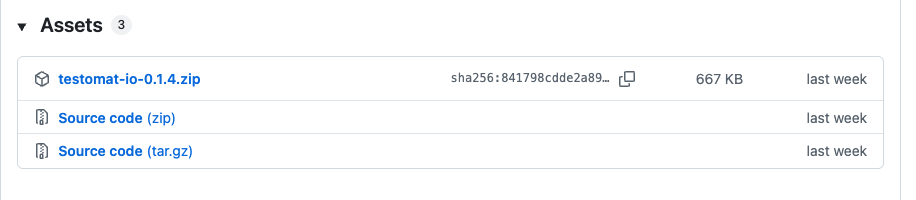
-
git clone https://github.com/testomatio/browser-extension.git
-
-
Open
chrome://extensionsand switch on Developer mode (top right). -
Click Load unpacked:
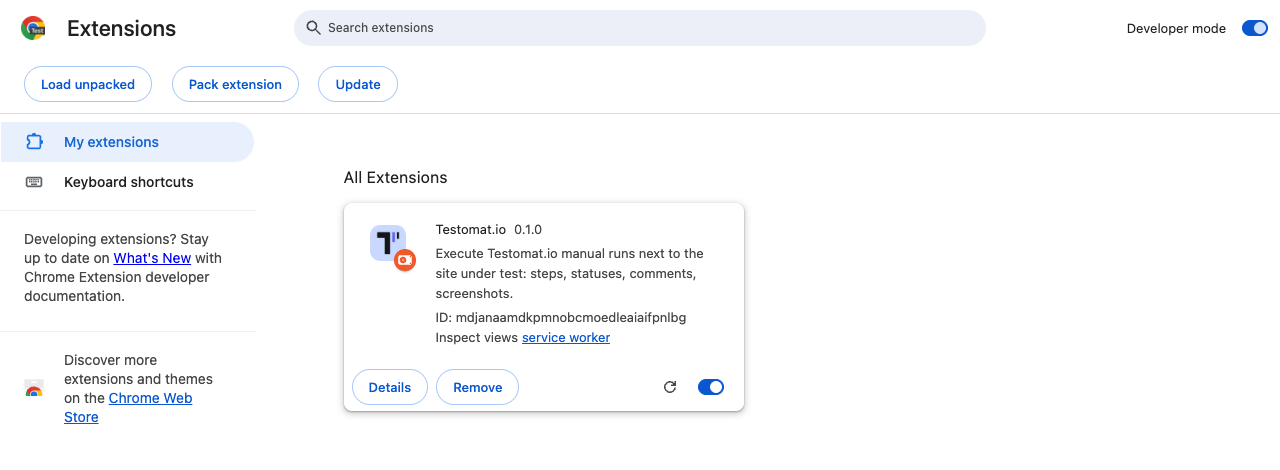
…and pick the folder:
- from the zip — the folder you unpacked;
- from the clone — the
extension/folder inside it, not the repository root.
Either way, the right folder is the one with
manifest.jsondirectly inside. -
Click the puzzle icon in Chrome’s toolbar and pin Testomat.io with the pushpin:
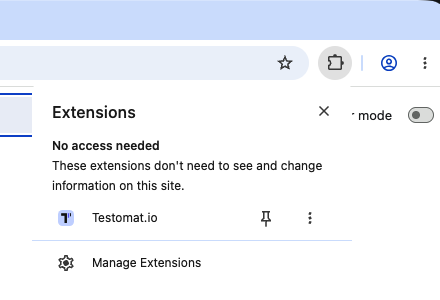
-
Click the pinned icon — the panel opens and asks you to connect (Connect to Testomat.io). That is the next page: Connect.
There is nothing to build or install beyond that — the folder runs as is.
Update
Section titled “Update”There is no auto-update. To get a new version:
-
Replace the folder contents: unpack a newer zip over the same folder, or
git pullin the clone. -
On
chrome://extensions, press the reload (↻) icon on the Testomat.io card: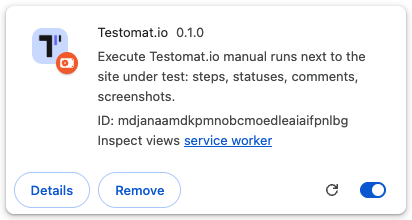
Your token, settings and unsent results survive the reload.
If it didn’t work
Section titled “If it didn’t work”- “Load unpacked” is missing — Developer mode is off; the switch is in
the top right corner of
chrome://extensions. - “Manifest file is missing or unreadable” — you picked the repository
root; pick the
extension/folder inside it. - Chrome refuses to load it — check your Chrome is 123 or newer
(
chrome://settings/help). - Updated, but behaves like the old version — press reload (↻) on the extension’s card; replacing the files alone is not enough.