

Step recorder
Instead of typing steps, do the flow once on the page and let the panel write it down — as readable Markdown, not code.
Record
Section titled “Record”- Open the page you want to record, then start a new test in the panel (see Create tests).
- Press Record steps in the editor. A dark pill appears in the
page’s bottom-right corner:
Recording · N steps, with + Expected, Pause and Stop. - Do the flow. Every click, entry, selection and navigation lands in the test’s Steps list a second or so after you do it, while you keep going.
- Press Stop — in the pill or in the editor. The steps are already there; Stop only ends the recording.
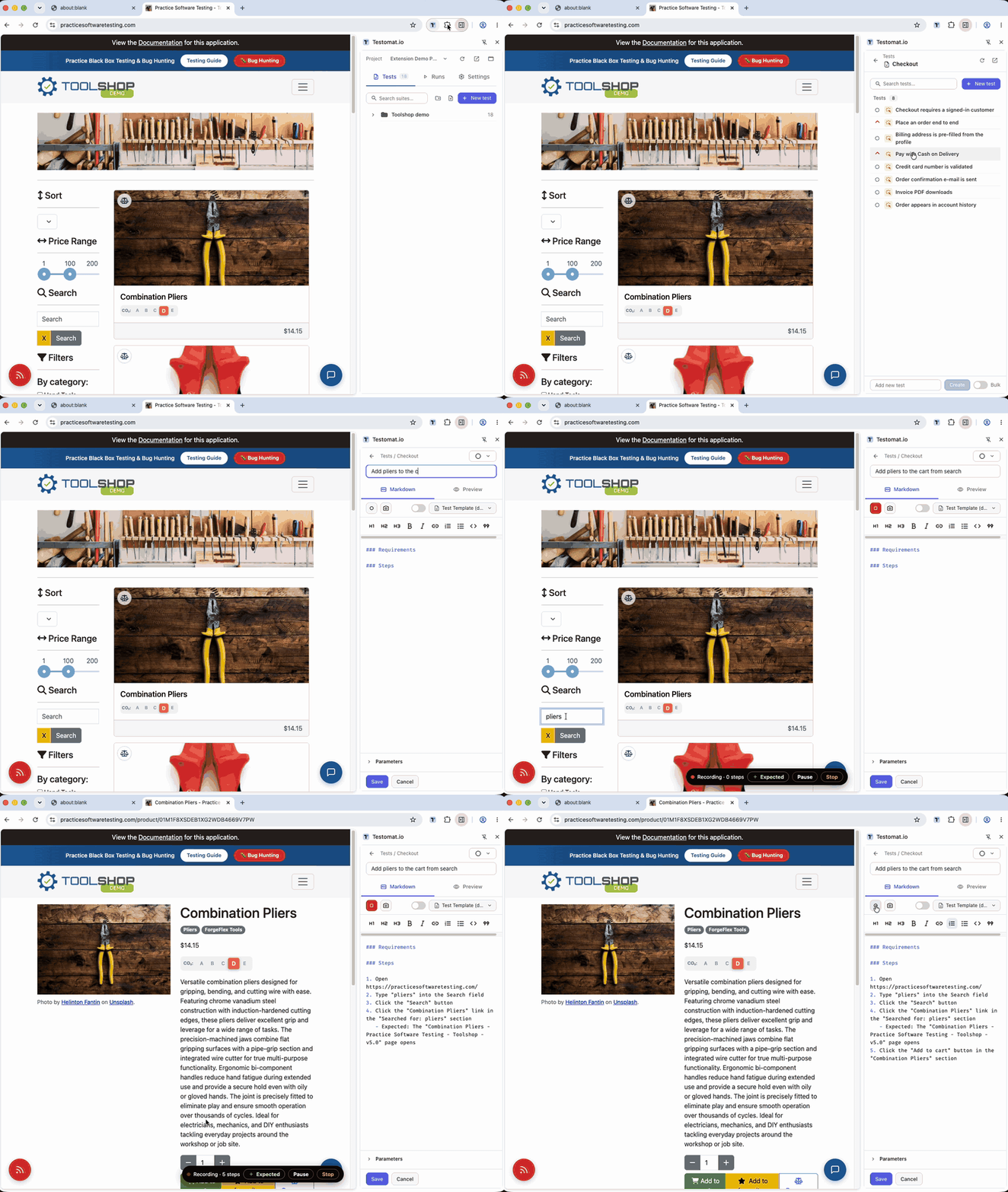
What landed in the editor after Stop:
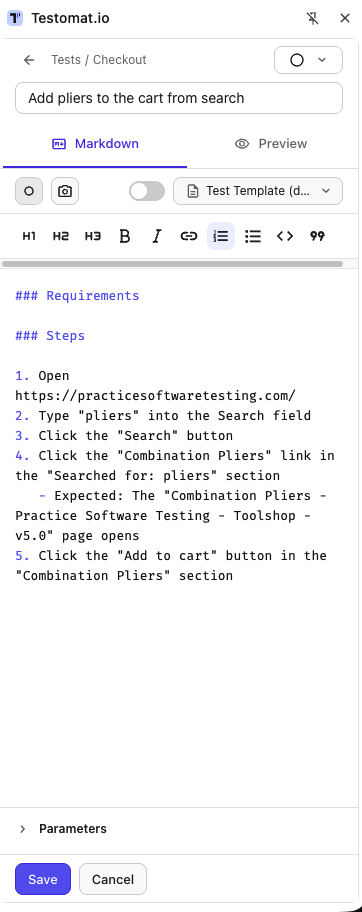
What a step looks like: Click the “Add to cart” button, Type “pliers”
into the Search field, Select “Hand Tools” in the Category dropdown. A
control gets named by its label, text or placeholder; one inside a table
row or a card carries that row’s name, so Click the button in the “Bolt
Cutters” row rather than a bare Click the button. A page change hangs
under the step that caused it as an Expected: line — The “Cart” page
opens.
Expected results as you go
Section titled “Expected results as you go”Checked something? Press + Expected in the pill, type what you saw,
Enter (Esc cancels). It attaches to the step you just did, as the same
Expected: line a run shows under that step. The page never sees those
keystrokes.
Pause, limits, continue
Section titled “Pause, limits, continue”- Pause in the pill drops everything until Resume — handy for a detour that is not part of the scenario.
- The recorder pauses itself at 50 steps and asks “Still recording?” — Continue grants another 50.
- Closing the recorded tab or the editor ends the recording; what was recorded up to then is already in the test.
Sensitive values
Section titled “Sensitive values”A password, card number, CVV, expiry, one-time code, passport or tax id
records as Type the password / the card number / the value into the …
field — the field is named, the value is not. Recognition uses the
field’s type and autocomplete, its wording, and for cards the number’s
own checksum. A dropdown recognised the same way — a card expiry month,
a birth year — records as Select the value in the … dropdown. It is
best-effort: if the site handles real payment or identity data, switch on
Settings → Step recorder → Never record entered values and every entry
reads Type text into the … field, every dropdown Select an option in
the … dropdown.
Polish with AI
Section titled “Polish with AI”The Polish with AI switch next to Record steps is off by default. With it on, nothing changes while you record; when you stop, your Testomat.io AI rewrites the recorded steps into cleaner prose. Undo polish puts the recorded wording back. If the AI is unavailable, the raw steps are kept and the editor says so.
If it didn’t work
Section titled “If it didn’t work”- Record steps does nothing / says the page can’t be recorded — the
tab in front is one extensions cannot touch (Web Store,
chrome://, another extension’s page); switch to the site under test first. - A click wasn’t recorded — the recorder was paused, or the control is drawn on a canvas; type the step by hand.
- Steps stopped at 50 — the soft cap; press Continue.